Prep Desk: your NEET lectures, with a quiz after each one
Every lecture, one-shot, note and PDF you study from, in one place and filed by NCERT chapter. Pick up any video where you left it, and when it ends, check what actually stuck.
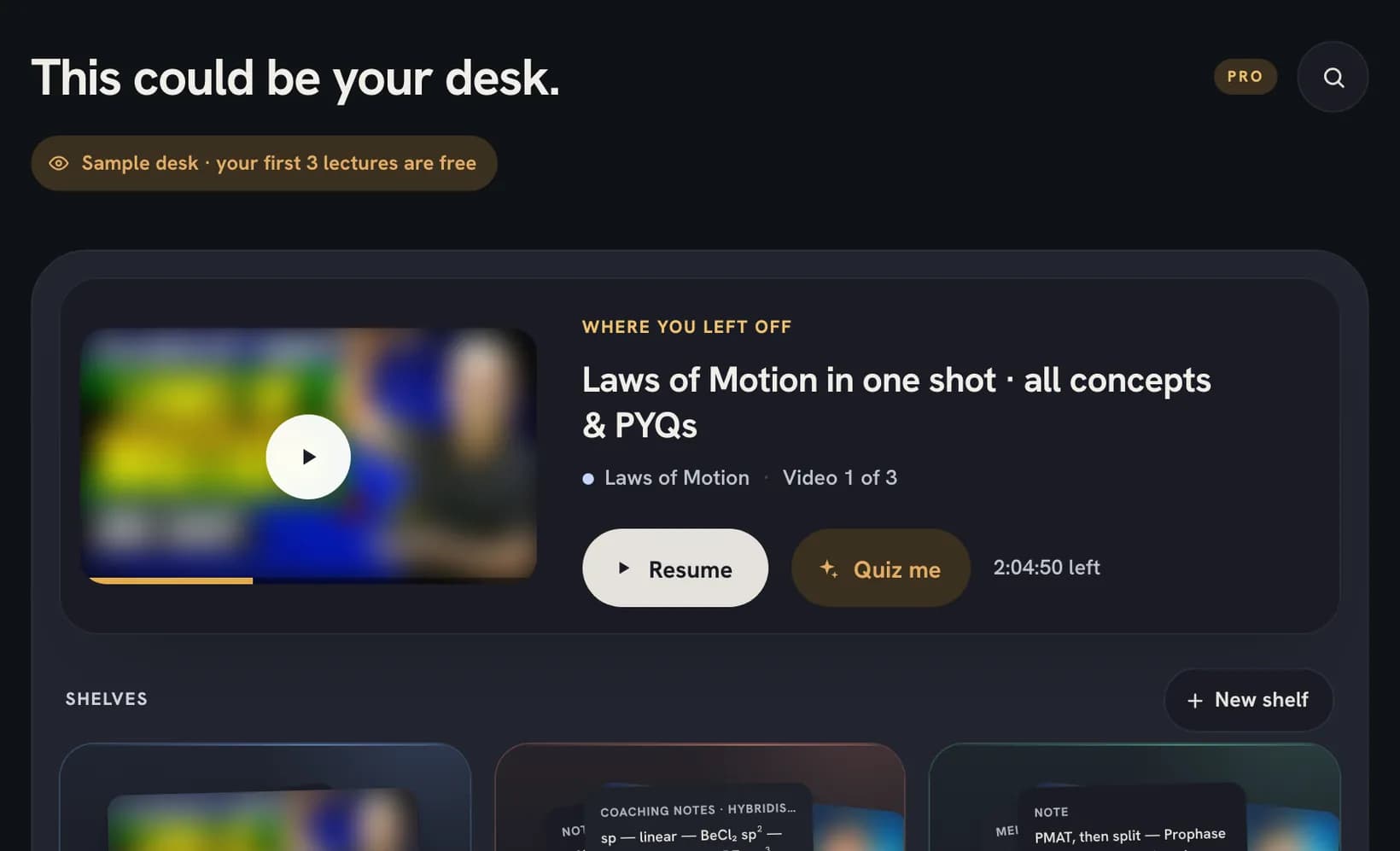
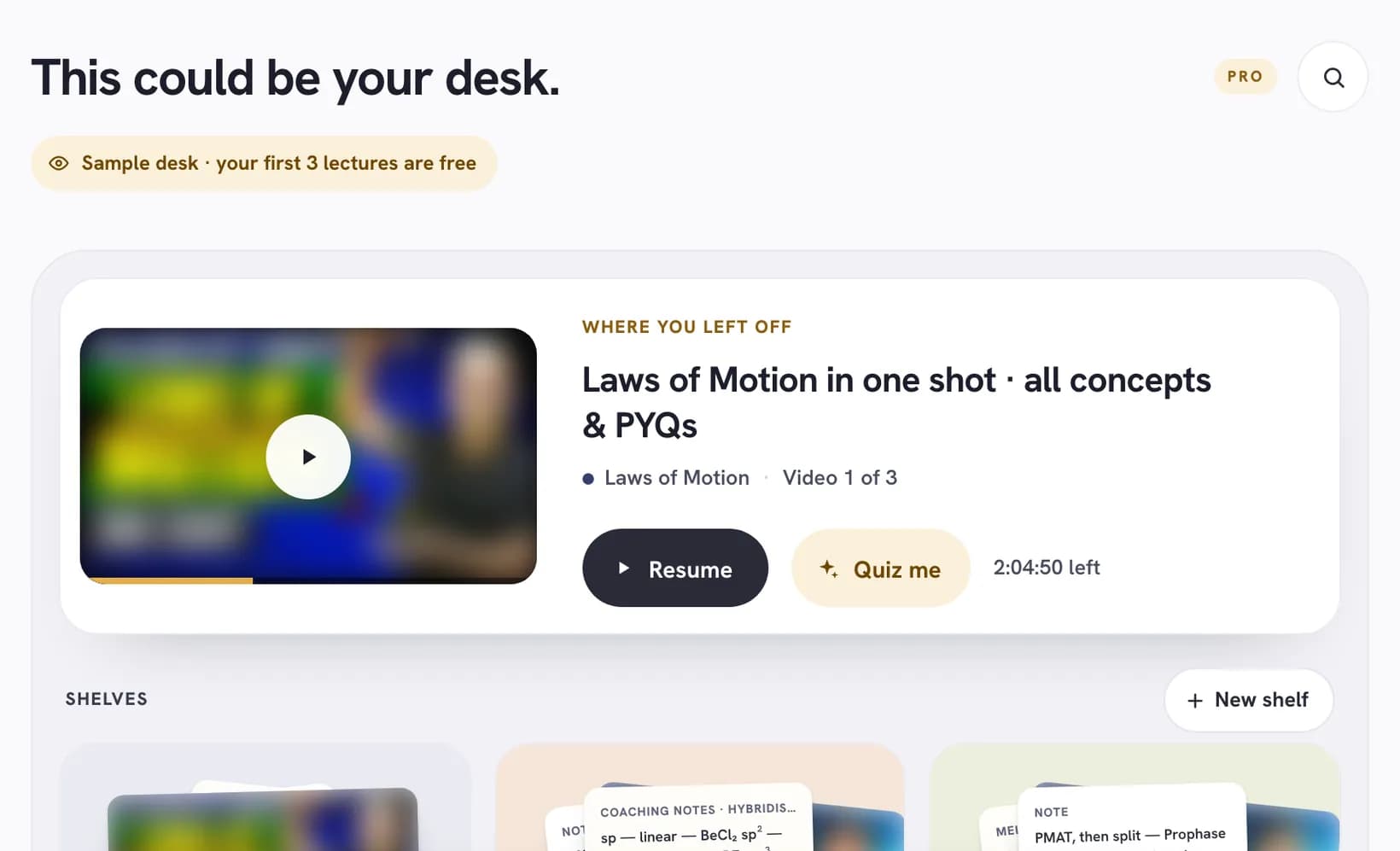
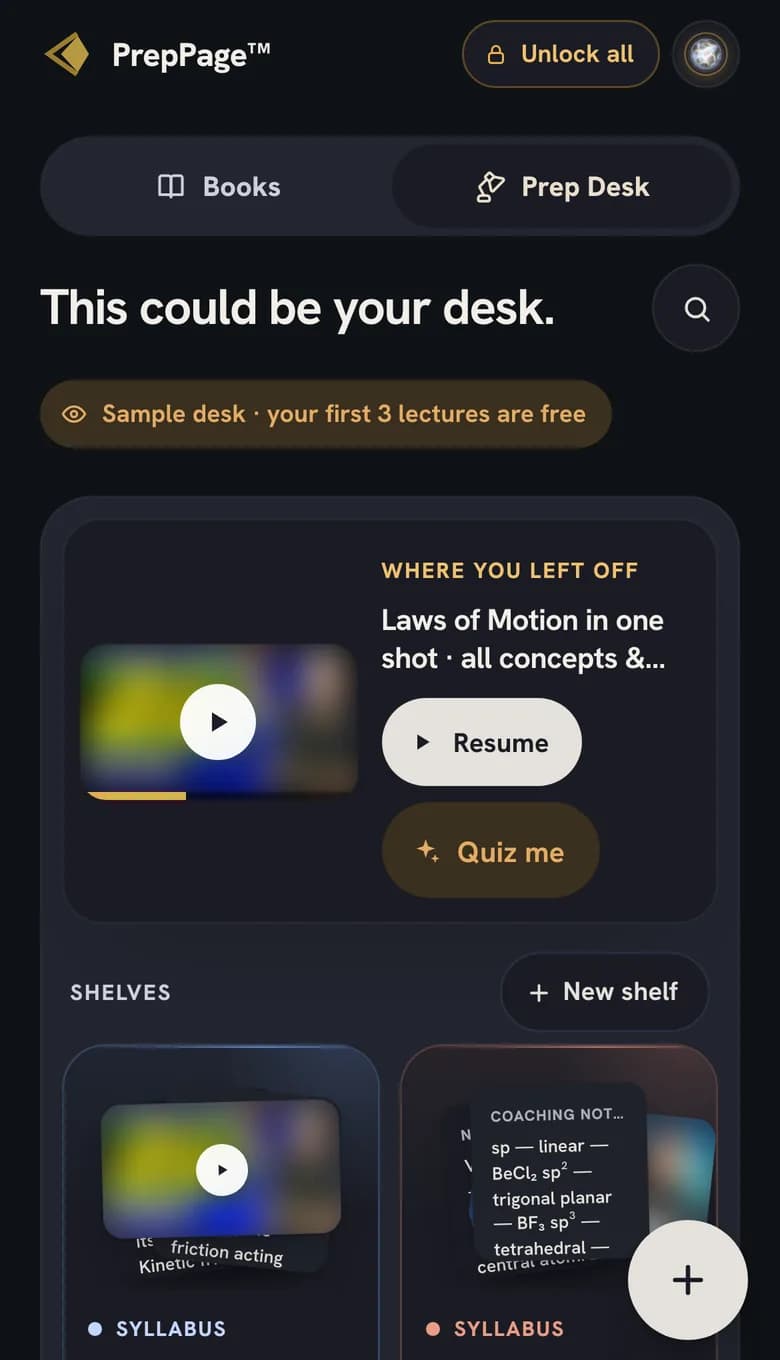
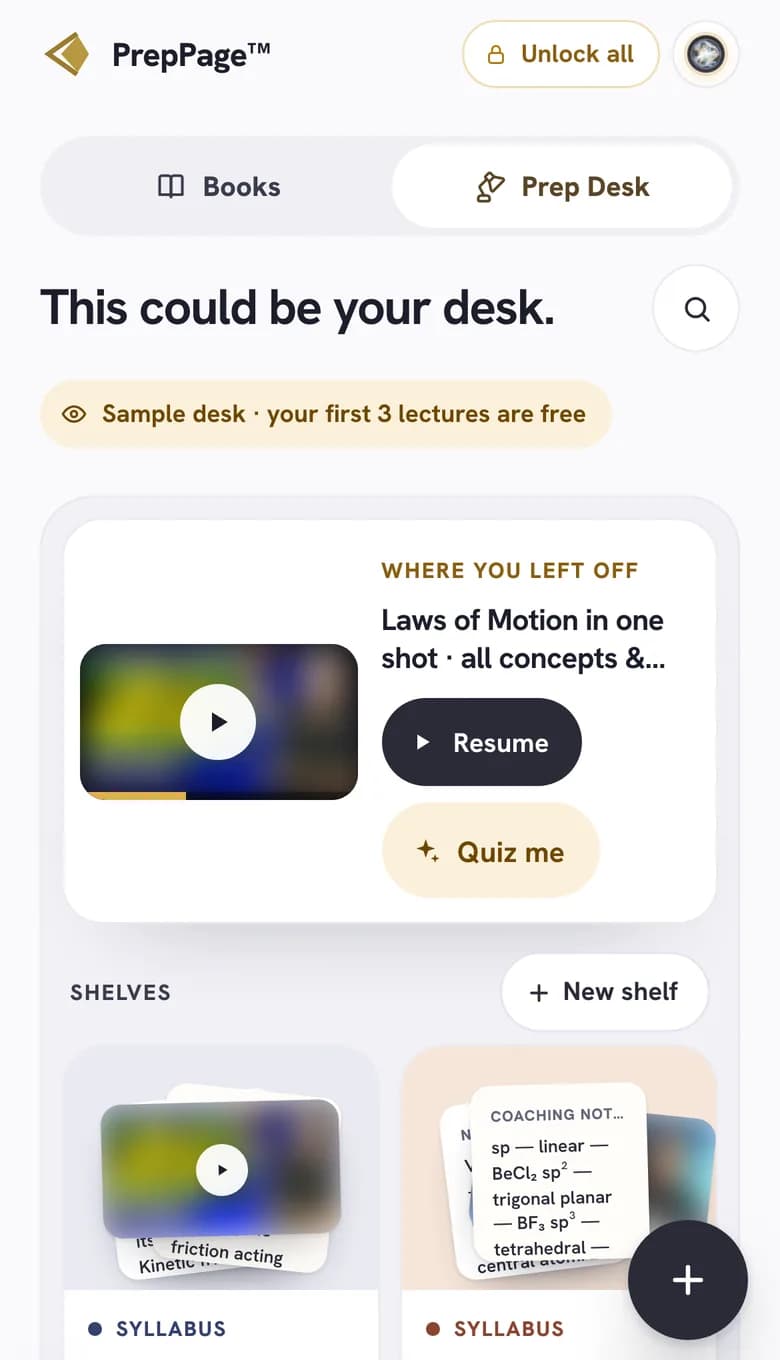
Watch a lecture, then find out what stuck
1. Add a lecture
Paste a YouTube link: a full lecture or a one-shot. The title comes in by itself, and the desk guesses which NCERT chapter the video belongs to. Change it if the guess is wrong.
2. Watch and mark moments
The video opens where you stopped last time. Mark the moments you'll want again (a derivation, a trick, a diagram), each with a note of your own.
3. Quiz me
When the video ends, check what stuck: 5, 10, 15 or 20 questions on that chapter, from its most probable MCQs, NEET PYQs and PYQ Twins.
Notes, snaps and PDFs, filed by chapter
Snaps
Photos of your class notes, a question from a test, the board at coaching. Put each one under its chapter or on a shelf.
Notes
Your own notes, typed in. The desk files each one under its chapter from the words you write, and you can move it.
PDFs and links
Module PDFs, worksheets and useful pages. PDFs open in the desk's reader and remember the page you were on.
Shelves
Physics, Chemistry and Biology to start with, a Revise shelf, and shelves of your own for things like marathons or PYQs.
A shelf we fill for you
The PrepPage shelf
PDFs we publish appear on every desk, on the PrepPage shelf. The free ones open for everyone, and the rest open with Pro. You don't have to save anything: when we add one, it's on your desk.
Start with three lectures
Free
- 3 YouTube videos on your desk, with your progress, moments and Quiz me
- The PrepPage shelf: our free PDFs, ready to read
Pro
- As many YouTube videos as you like, and whole playlists
- Snaps, notes, PDFs and links on your desk
- Shelves of your own, and the questions you miss sent to Revise
- Every PDF on the PrepPage shelf
Put your next lecture on the desk
Add the video you were going to watch anyway, and take the quiz when it ends.
Questions, answered
Can I make a quiz from a YouTube lecture?
Yes. Add the lecture to your desk and it's matched to its NCERT chapter. After you watch it, Quiz me asks 5 to 20 questions on that chapter, so you find out what stuck before you move on.
Which lectures can I add?
Any YouTube video: a full chapter lecture, a one-shot, or a revision marathon. Pro also takes whole playlists and links from other sites.
Is Prep Desk free?
You can put 3 YouTube videos on a free desk, with progress, moments and Quiz me, and read the free PDFs on the PrepPage shelf. Pro opens the full desk.
Will my desk be there on my phone and laptop?
Yes. Your desk is saved to your account, not to the browser, so it's the same wherever you sign in.
How big can my files be?
Each snap can be up to 10 MB and each PDF up to 25 MB, with 1 GB of files per student.